

Visualizing with VR
For years, we’ve relied on paint chips, fabric swatches, and hopeful guesswork when planning a room makeover. Now, a new tool is emerging that promises to change all that: virtual reality. Specifically, using VR for room planning with 3D wall panels is gaining traction, and for good reason. It’s about more than just seeing a rendering on a screen; it's about experiencing the space before you lift a single panel.
The benefits are significant. Visualizing in VR allows you to avoid costly mistakes that come with misjudging scale, color, or arrangement. You can experiment freely with different designs without the commitment of purchasing materials or making permanent changes. It also builds confidence. Seeing your vision come to life in a realistic, immersive environment can be incredibly empowering.
VR isn’t exactly new technology, of course. But its accessibility is increasing rapidly. The Meta Quest 2, and now the Meta Quest 3, have brought reasonably priced, high-quality VR experiences into many homes. This wider adoption is making VR room planning a practical option for a growing number of people. I think we’re at a point where the technology is mature enough to be genuinely useful, not just a novelty.
Ultimately, VR room planning isn't about replacing traditional methods entirely; it’s about supplementing them. It’s another layer of assurance, a way to refine your ideas and ensure that the final result matches your expectations. It’s a chance to truly feel the space before you commit.
Software for Meta Quest
If you're using a Meta Quest 2 or 3, your best bets are Home Design 3D VR and Planner 5D. Both are in the Meta Store and handle 3D layouts differently depending on how much detail you need.
Home Design 3D VR, available on the Meta Store, is particularly well-suited for quick and intuitive room remodeling. It allows you to create, furnish, and decorate your home in a virtual environment with relative ease. The software focuses on a user-friendly experience, making it accessible even for those unfamiliar with 3D modeling. It's a straightforward option for quickly visualizing changes.
Planner 5D also provides a comprehensive suite of tools for designing and remodeling spaces. It allows for 3D floor plan creation and offers features like 360-degree walkthroughs. While it isn’t exclusively VR-focused, it does offer VR compatibility. Planner 5D also has options for professional interior design services if you're looking for more expert guidance.
I’ve found that Home Design 3D VR offers a smoother experience for beginners. It's less about precise measurements and more about getting a feel for the overall look and arrangement. Planner 5D is more powerful, but that power comes with a steeper learning curve. Both are worth exploring to see which best fits your needs and technical comfort level.
- Home Design 3D VR is best for quick remodeling and is available directly on the Meta Store.
- Planner 5D: Comprehensive tools, 360 walkthroughs, VR compatible, professional design services.
VR Headset & Software Compatibility
- Meta Quest 2 - Generally good compatibility with many room design applications. Offers wireless freedom, making room-scale planning easier. Spatial awareness features enhance accurate placement visualization. Compatibility Score: ★★★★
- Meta Quest 3 - Improved resolution and processing power over Quest 2 leads to a more detailed and responsive VR design experience. Native support for hand tracking can streamline the manipulation of 3D panels within the software. Compatibility Score: ★★★★★
- HTC Vive Pro 2 - High-resolution display and wide field of view provide immersive visualization. Requires a powerful PC for optimal performance with complex room designs. Compatibility Score: ★★★★
- Valve Index - Known for its precise tracking and comfortable ergonomics. Offers 'knuckles' controllers which can provide a more natural interaction with design elements. Compatibility Score: ★★★★☆
- SketchUp (with VR View) - SketchUp offers a VR View extension allowing users to experience their models in VR. Compatible with HTC Vive and Oculus headsets. Functionality is focused on model review, not necessarily detailed layout planning. Compatibility Score: ★★★
- Homestyler - This web-based room design tool offers VR viewing capabilities through compatible headsets like Oculus and HTC Vive. Focuses on furniture and decor placement, and may have limited options for complex wall panel designs. Compatibility Score: ★★★
- Unreal Engine (with VR Templates) - While a steeper learning curve, Unreal Engine provides powerful tools for creating highly detailed and interactive VR room designs. Supports a wide range of VR headsets including Meta Quest and Valve Index. Compatibility Score: ★★★★★ (requires significant technical skill)
Building 3D panels in a virtual space
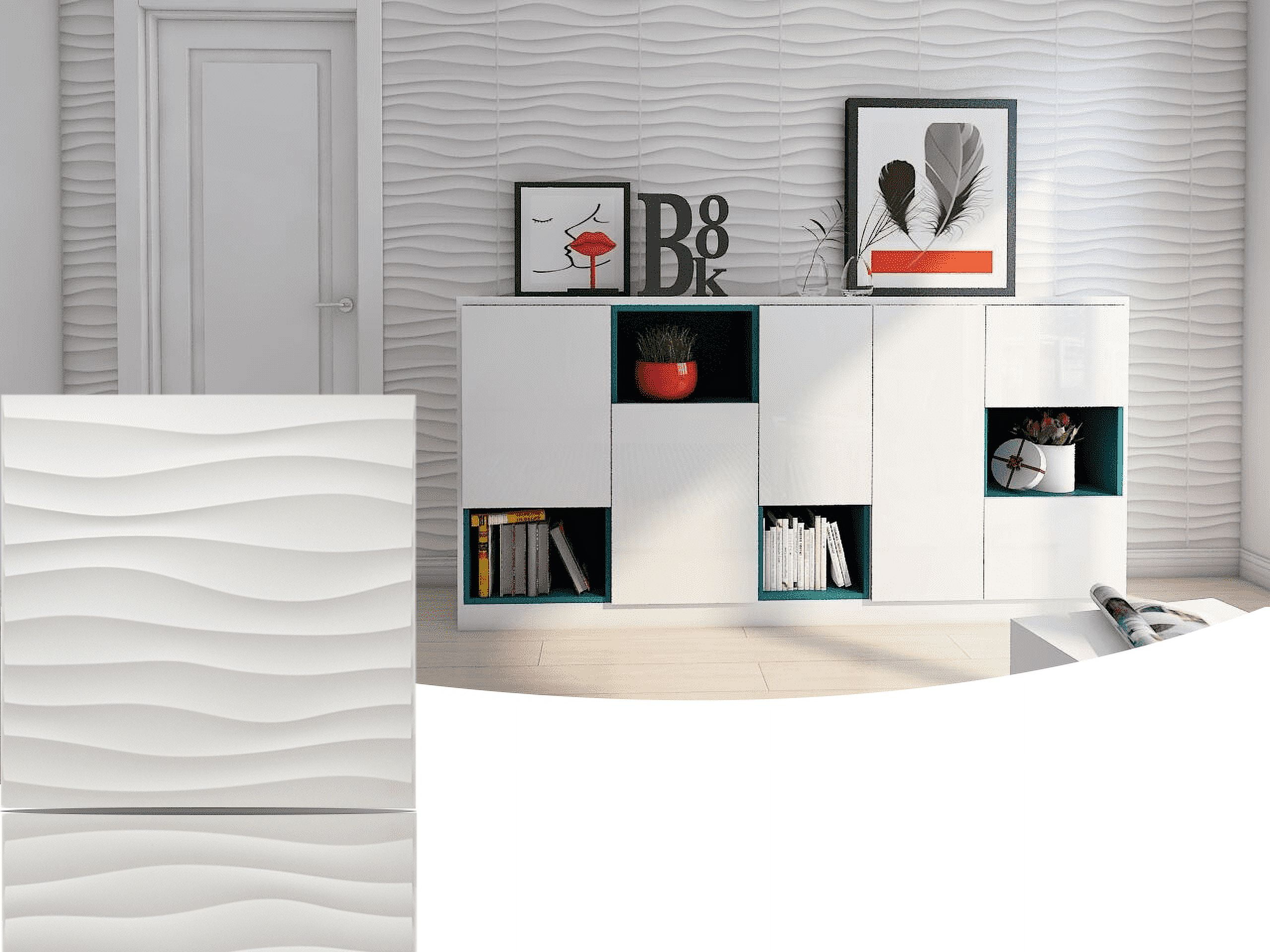
Once you’ve chosen your VR software, the next step is to bring your Whole3D panel designs into the virtual space. Currently, direct import of custom 3D models isn't a standard feature in many consumer-level VR design apps. This means you’ll likely need to recreate your chosen Whole3D panel designs within the software. It sounds daunting, but most programs offer tools to build custom shapes and textures.
Start by accurately defining the dimensions of your panels. Whole3D provides precise measurements on their product pages, and these are crucial for replicating the panels correctly in VR. Pay close attention to the depth and relief of the panels, as this will affect how light interacts with them in the virtual environment. It’s better to err on the side of accuracy at this stage.
Within the software, use the modeling tools to create the basic shape of the panel. Then, focus on the texture. You can often upload custom images to simulate the panel’s surface. Experiment with different lighting settings to get the texture looking as realistic as possible. This is where the software’s rendering capabilities come into play.
Once you have a single panel accurately recreated, you can duplicate it and arrange it on your virtual walls. This is where the real power of VR becomes apparent. You can easily adjust the placement, rotation, and spacing of the panels until you achieve the desired look. Don't hesitate to try different arrangements – that’s the whole point of virtual experimentation!
I've noticed that achieving a truly realistic look can be challenging, particularly when it comes to replicating complex textures. However, even a close approximation is incredibly valuable for visualizing the overall impact of the panels. Remember, you’re aiming for a representation, not a perfect replica.
- Step 1: Accurately define panel dimensions using Whole3D product specifications.
- Step 2: Recreate the panel shape within the VR software.
- Step 3: Apply a custom texture to simulate the panel’s surface.
- Step 4: Duplicate and arrange panels on virtual walls.
- Step 5: Adjust placement, rotation, and spacing for desired look.
Beyond Layout: Experimenting with Styles
The real magic of VR room planning with Whole3D panels lies in its ability to facilitate experimentation. Unlike traditional methods, VR allows you to quickly and easily try out different styles, colors, and arrangements without any physical effort or cost. You can see how a dark, textured panel looks in your space, then instantly switch to a light, geometric design.
This is particularly helpful when considering the vast range of options offered by Whole3D. With so many different panel designs available, it can be overwhelming to choose. VR allows you to virtually “try on” different looks and see what resonates with your personal style. You can even save multiple versions of your design to compare and contrast.
Don't underestimate the impact of lighting. In VR, you can adjust the virtual lighting to see how it affects the panels. Different lighting angles and intensities can dramatically change the appearance of the textures and patterns. This is something that’s often difficult to predict with traditional planning methods.
I’ve found that changing the color of the virtual walls can also have a significant impact on how the panels look. Experiment with different paint colors to see how they complement or contrast with the panels. VR provides a safe and risk-free environment to explore these possibilities.
Getting the scale right
Precise scaling is absolutely critical for successful VR room planning. If your virtual room dimensions don’t accurately match the actual room dimensions, your design will be off, and the installation won’t go smoothly. Most VR software allows you to input the room’s dimensions manually, but it’s essential to double-check your measurements.
Use a laser measure for the most accurate results. Don’t rely on estimates or guesswork. Pay attention to details like ceiling height, window and door locations, and the position of electrical outlets. These factors can all affect the placement of your Whole3D panels.
Account for furniture and other objects in the space. Add virtual representations of your existing furniture to the VR environment to get a realistic sense of how the panels will fit into the room. This will also help you identify any potential obstacles or design challenges.
I recommend creating a physical mock-up of a small section of your design before committing to the full installation. This will allow you to verify the scale and proportions in the real world and make any necessary adjustments. It’s a small step that can save you a lot of headaches down the road.
- I recommend using a laser measure for the room dimensions rather than a tape measure to ensure the virtual walls line up perfectly.
- Input: Enter dimensions accurately into VR software.
- Furniture: Add virtual representations of existing furniture.
- Mock-up: Create a physical mock-up of a small section.
Common glitches and how to fix them
VR room planning isn’t always seamless. Users often encounter challenges like software glitches, inaccurate scaling, or difficulty visualizing the final result. One common complaint is motion sickness, particularly for those new to VR. Taking breaks and starting with shorter sessions can help mitigate this.
Inaccurate scaling is another frequent issue. If your panels appear too large or too small in VR, double-check your room dimensions and ensure that the software is calibrated correctly. Some software packages allow you to reset the scale, which can be helpful if you’ve made a mistake.
Difficulty visualizing the final result can stem from poor lighting or low-resolution textures. Experiment with different lighting settings and try to find higher-quality textures. Remember that the VR environment is a representation, not a perfect replica.
Software glitches are inevitable. If you encounter a bug, try restarting the software or updating to the latest version. Online forums and communities dedicated to VR design can be valuable resources for finding solutions to common problems. I’ve seen users share workarounds for various software issues on the Meta Quest forums.
Finally, remember to save your work frequently. VR software can be prone to crashes, and you don’t want to lose your progress.
- Motion Sickness: Take breaks, start with short sessions.
- Scaling Issues: Double-check room dimensions, reset scale if needed.
- Visualization Problems: Adjust lighting, use higher-resolution textures.
- Software Glitches: Restart software, update to latest version.
No comments yet. Be the first to share your thoughts!